Installationsinstruktioner
LibreOffice är enkelt att installera.
Nedan följer steg-för-steg-instruktioner för macOS, Linux och Windows. Se Andra versioner för information om olika andra installationsmetoder och plattformar.
macOS
Kontrollera först systemkraven innan du installerar LibreOffice på macOS. Viktigt: Se till att du väljer rätt version för din Mac på nedladdningssidan – Intel eller Apple Silicon. Den senare är standardversionen, men om du har en Intel Mac måste du välja Intel-versionen.
- Ladda ner .DMG-filen från Nedladdningssidan.
- Öppna .DMG-filen genom att dubbelklicka på den.
- Ett installationsfönster visas: dra och släpp LibreOffice-ikonen till programikonen i samma fönster. Du kan bli ombedd att ange ditt administratörslösenord.
- Filerna kopieras över och en förloppsindikator visar när installationen är klar.
- Om det behövs kan du nu ladda ner och installera språkpaketet/-en du väljer och inbyggd hjälp genom att ladda ner .DMG-filen du väljer. Installationsprogrammen för dessa startas inifrån deras .DMG-filer.
Linux
Som en allmän regel rekommenderas du att installera LibreOffice via de installationsmetoder som rekommenderas av din specifika Linuxdistribution (t.ex. Ubuntu Software Center, när det gäller Ubuntu Linux). Detta beror på att det vanligtvis är det enklaste sättet att få en installation som är optimalt integrerad i ditt system. LibreOffice kan faktiskt redan vara installerat som standard med ditt Linux-operativsystem. Detaljerad information finns på wikin.
Kort sagt, du kommer att kunna ladda ner LibreOffice-paket anpassade till ditt systems paketeringsstandard (RPM eller deb), eller till och med få ett .tar.gz-arkiv för LibreOffice. Du måste sedan installera dessa paket, först de huvudsakliga LibreOffice-binärfilerna, sedan de ytterligare komponenterna som språkpaket och inbyggd hjälp.
Windows
Innan du påbörjar installationsprocessen, kontrollera sidan Systemkrav för att se vilka förutsättningar som gäller för att installera LibreOffice på ett Windows-system.
Företags- och myndighetsanvändare: vänligen se sidan information om driftsättning och migrering.
Du behöver inte avinstallera någon tidigare installerad version av LibreOffice. Om du har en befintlig installation av LibreOffice kommer alla dina inställningar att bevaras och den gamla installationen kommer helt enkelt att skrivas över.
1. Huvudprogram
1.1 Ladda ner
Om du är osäker på vilken Windows-version du har, tryck på ⊞ Win+Pause för att öppna fönstret Systemegenskaper. På LibreOffice-nedladdningssidan kan du välja en inbyggd hjälpfil för ditt språk.
Du är inbjuden att ge en valfri donation.
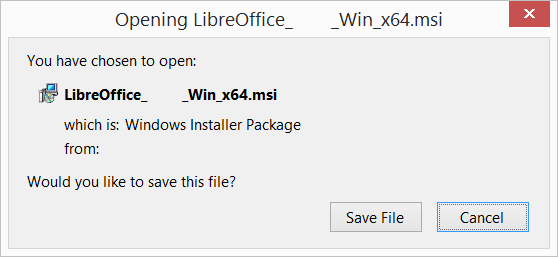
1.2 Installera
Öppna mappen där huvudinstallationsprogrammet har laddats ner och dubbelklicka på installationsprogrammet.
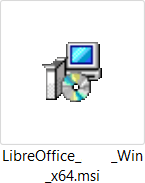
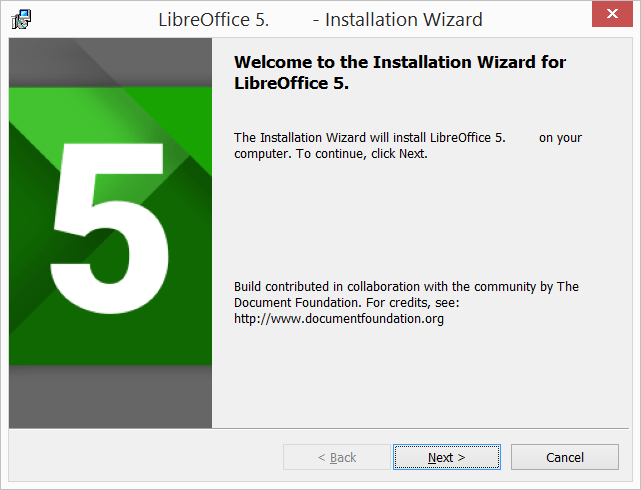
1.3 Välkommen
Dialogrutan Installationsguidens välkomstruta öppnas och meddelar att installationsprocessen snart ska starta. Klicka på ”Nästa >”.
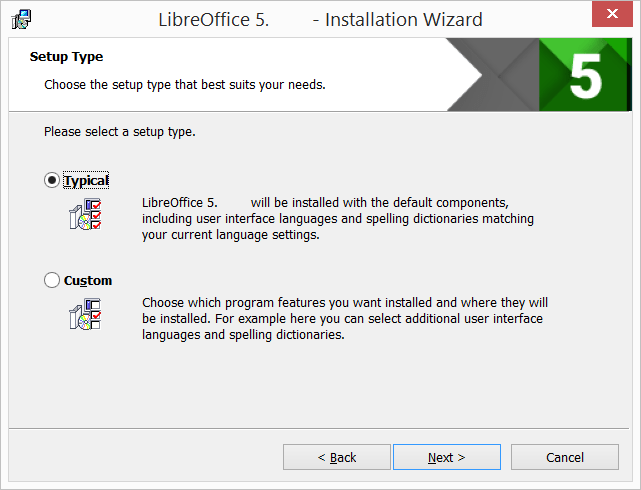
1.4 Installationstyp
En annan dialogruta öppnas där du kan välja om du vill ha en standardinstallation eller om du vill välja speciella platser och komponenter. Om du vill ha en standardinstallation trycker du bara på “Nästa >”. Om du vill göra speciella val klickar du på “Anpassad” och trycker sedan på “Nästa >”.
1.5 Anpassad installation
Den anpassade installationen möjliggör ändringar av de funktioner som kommer att installeras.
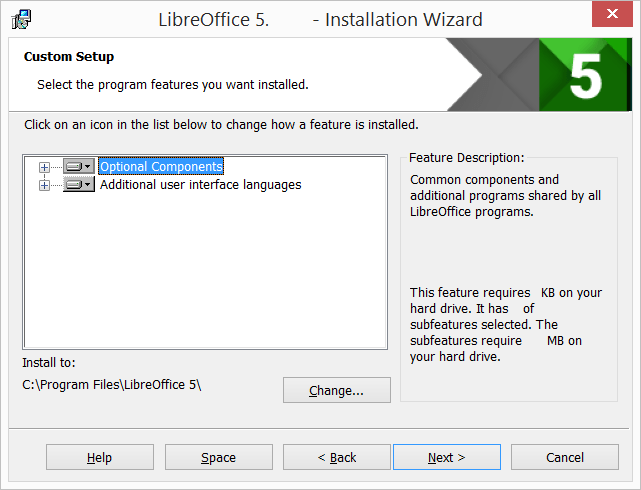
Om du vill installera stavningsordböcker, bindestrecksregler, synonymordbok och grammatikkontroll:
- Klicka på ⊞ Valfria komponenter
- Klicka på ⊞ Ordböcker
För att till exempel installera ungerska, se till att ungerska är valt till vänster om bilden och att det står “Den här funktionen kommer att installeras på den lokala hårddisken”.
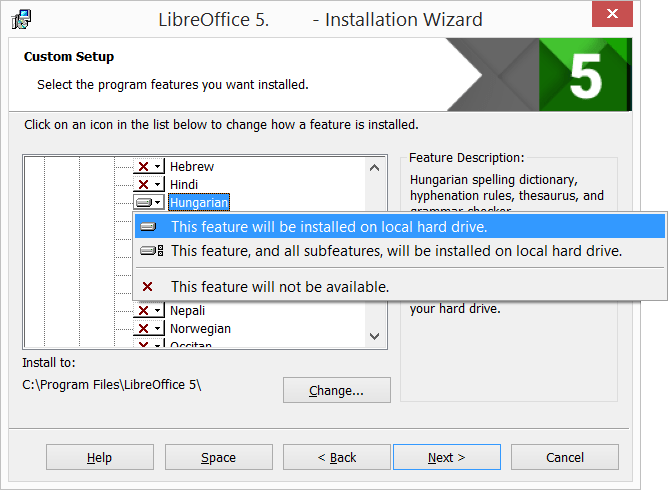
När alla nödvändiga ändringar av funktionerna har slutförts klickar du på “Nästa >”.
1.6 Filtyp
En annan dialogruta öppnas där du kan välja om du vill öppna Microsoft Office-dokument med LibreOffice. Som standard är den här funktionen inte aktiverad. Om du vill att LibreOffice ska öppna Microsoft Office-filer (dokument, kalkylblad och presentationer) markerar du alla fyra kryssrutorna.
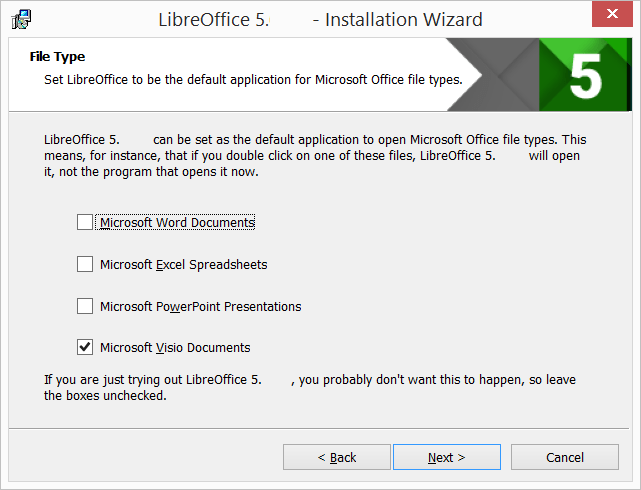
Klicka på “Nästa >”
1.7 Genväg och laddning under systemstart
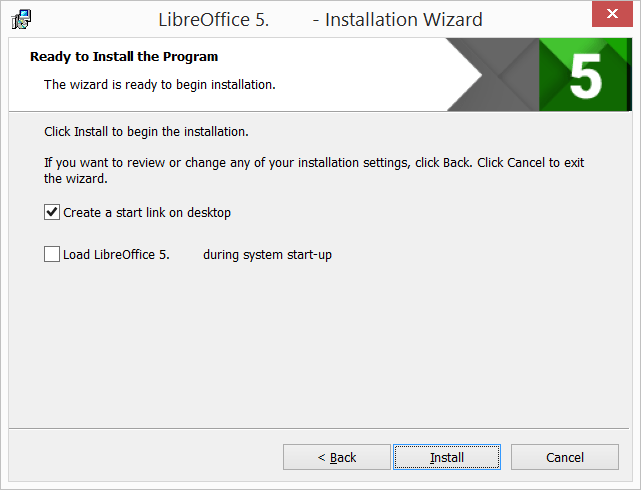
En annan dialogruta öppnas och frågar om du:
- En genväg för att öppna LibreOffice bör placeras på skrivbordet. Standardalternativet är att skapa en genväg.
- För att ladda LibreOffice under systemstart.
Efter dina val tryck på “Installera”.
1.8 LibreOffice installeras
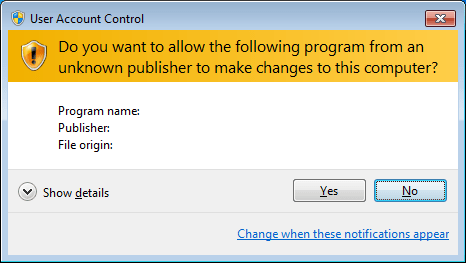
Om dialogrutan Användarkontokontroll visas klickar du på “Ja” för att fortsätta installationen.

1.9 LibreOffice-installationen är slutförd
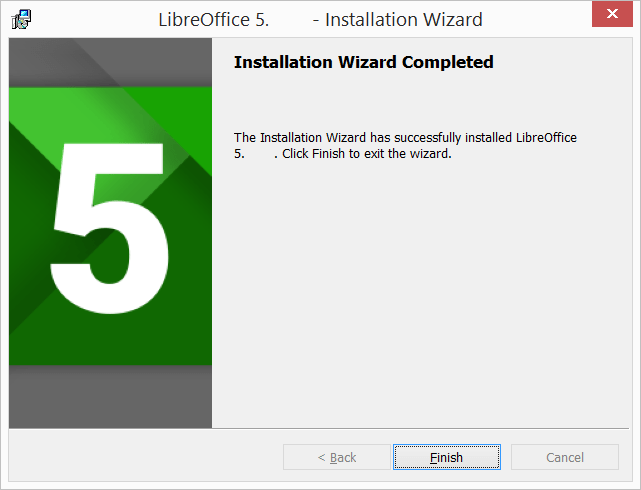
Klicka på “Slutför”.
2. Inbyggd hjälp
Om du vill använda den inbyggda hjälpen måste du ladda ner och installera lämplig fil.